
Download BackityMac – Secure Mac Backup Tool, Free Backup Software
Overview
BackityMac is a lightweight backup utility designed specifically for macOS users who need a quick, reliable way to protect their most valuable data without the complexity of full‑disk cloning. While Apple’s native Time Machine provides continuous, incremental backups for users on Leopard and later, many still run older versions of macOS or prefer a more hands‑on approach. BackityMac fills that gap by letting you hand‑pick the files and folders you consider essential—such as Apple Mail archives, iCal calendars, iPhoto libraries, and iTunes collections—and bundle them into a single, portable disk image (DMG). The application also offers the option to burn the DMG to a CD or DVD for an extra layer of physical security, which can be useful for long‑term archival or for environments where network storage isn’t an option.
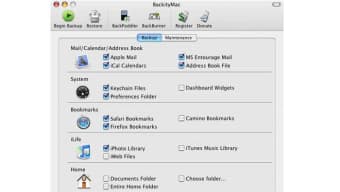
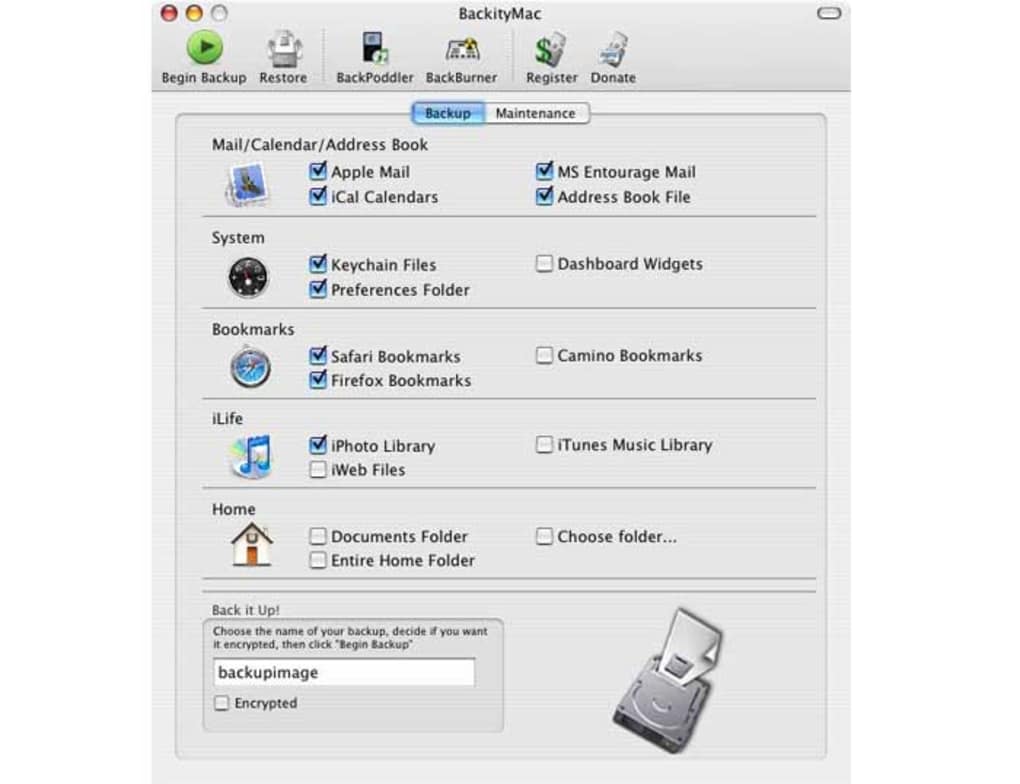
What sets BackityMac apart is its simplicity. The user interface is a single‑pane menu that displays check‑boxes for each backup category. One click and the selected items are copied into a compressed DMG, ready for storage on an external drive or optical media. Restoration is equally straightforward: open the DMG, drag the files back into place, or let BackityMac automate the process with a single “Restore” button. For iPod owners, the tool includes a hidden gem—a feature that can scan an iPod for lost music files and import them back into iTunes, rescuing tracks that might otherwise be gone forever.
Despite its user‑friendly design, BackityMac does have limitations. It does not support full‑disk cloning, which means you must manually select every folder you want to protect; any oversight could leave a critical file unbacked. Additionally, the software lacks incremental backup capabilities, so each backup operation creates a fresh DMG from scratch, potentially consuming more storage over time. For users seeking a robust, enterprise‑grade solution, a combination of Time Machine and a dedicated cloning tool (such as Carbon Copy Cloner) might be more appropriate. However, for home users, students, or anyone who needs a no‑frills, cost‑effective backup method, BackityMac remains a solid choice.
Key Features
- Selective Backup: Choose specific data categories—Mail, Calendar, iPhoto, iTunes, Documents—rather than backing up the entire drive.
- DMG Creation: All selected files are compressed into a single, mountable disk image for easy transport and storage.
- Optical Media Support: Burn the DMG directly to CD or DVD, providing an offline backup option.
- One‑Click Restore: Re‑import your files with a single click, minimizing downtime after a crash or theft.
- iPod Music Recovery: Scan an iPod for missing tracks and automatically add them back to your iTunes library.
- Simple Interface: A clean menu with check‑boxes makes the backup process intuitive for users of any skill level.
- Cross‑Version Compatibility: Works on macOS versions prior to Leopard, extending protection to older hardware.
- Secure Storage: DMG files can be password‑protected, adding an encryption layer for sensitive data.
BackityMac’s feature set is deliberately streamlined to avoid overwhelming users with settings they may never need. By focusing on the most common data types that Mac owners rely on daily, the tool eliminates the guesswork often associated with generic backup solutions. The ability to produce a single, portable disk image means you can keep a copy on an external SSD, a USB thumb drive, or a cloud‑synchronized folder, giving you flexibility in how you store and retrieve your backups. While power users may miss advanced options like scheduled backups or versioning, the core functionality—quick selection, reliable compression, and effortless restoration—covers the essential needs of most home and small‑office environments.
Installation & Usage Instructions
Getting started with BackityMac is a breeze. Follow these steps to download, install, and begin protecting your data:
- Download the Installer: Visit the official BackityMac website and click the “Download Free” button. The file is a standard
.dmgpackage, typically under 10 MB, making it quick to download even on slower connections. - Mount the Disk Image: Double‑click the downloaded
.dmg. macOS will open a new window showing the BackityMac application icon. - Copy to Applications: Drag the BackityMac icon into your
/Applicationsfolder. You may be prompted to enter your administrator password; this is normal for installing new software. - Launch the Program: Open BackityMac from the Applications folder or use Spotlight (⌘ Space, type “BackityMac”). The first launch may display a warning about an unidentified developer; click “Open” to proceed.
- Select Backup Items: The main window presents a list of check‑boxes for common data categories. Tick the items you wish to protect. For custom folders, click the “Add Folder” button and browse to the location.
- Choose Destination: Click “Browse” next to the Destination field to select an external drive, a network share, or a local folder where the DMG will be saved. If you prefer optical media, select the “Burn to CD/DVD” option.
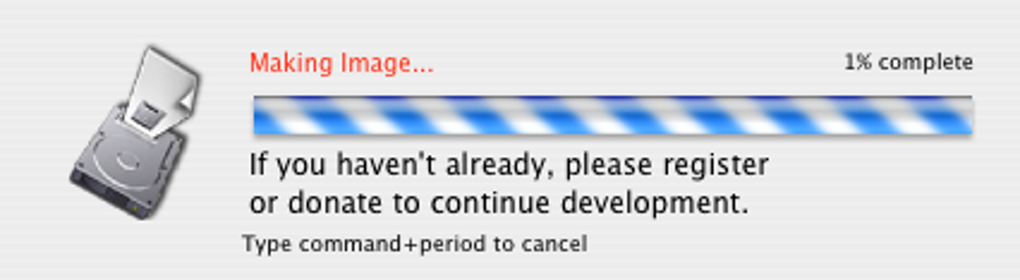
- Start Backup: Press the “Backup Now” button. BackityMac will compress the selected files into a DMG, displaying a progress bar and estimated time remaining.
- Verify the Backup: Once completed, a confirmation dialog appears. You can mount the DMG by double‑clicking it to ensure the files are present and intact.
- Restoration Process: In the event of data loss, launch BackityMac, click “Restore,” and point to the previously created DMG. Choose whether to overwrite existing files or merge with the current library. The tool will automatically copy the contents back to their original locations.
- iPod Music Recovery (Optional): Connect your iPod, select the “Recover iPod Music” option, and let BackityMac scan and import any missing tracks into iTunes.
The entire workflow—from download to first backup—typically takes less than ten minutes, depending on the amount of data you select. Because BackityMac does not run as a background service, it consumes no system resources when not in use, preserving CPU and memory for your regular tasks. For users who need to back up regularly, creating a simple reminder in Calendar or using Automator to launch BackityMac on a schedule can fill the gap left by the lack of built‑in incremental backups.
Pros, Cons, FAQ & Final Verdict
Pros
- Easy‑to‑use interface suitable for beginners.
- Selective backup saves time and storage space.
- Creates a single DMG file, simplifying transport and archival.
- Option to burn backups to CD/DVD for offline storage.
- iPod music recovery feature adds unexpected value.
- Works on older macOS versions, extending support to legacy hardware.
- Password protection for DMG files enhances security.
Cons
- No full‑disk cloning; users must manually select files.
- Lacks incremental backups, requiring full rebuild each time.
- Limited scheduling; backups must be started manually.
- No native cloud sync integration; users need third‑party services.
- Interface feels dated compared to modern backup suites.
Frequently Asked Questions
Can BackityMac back up system files and applications?
BackityMac focuses on user‑generated data such as Mail, iCal, iPhoto, iTunes, and personal documents. It does not clone the operating system or installed applications. For a complete system backup, consider using Time Machine or a dedicated cloning tool.
Is the DMG file encrypted?
Yes. When creating the backup, you can enable password protection, which encrypts the DMG using AES‑256 encryption. This ensures that only users with the password can mount and view the contents.
Can I schedule automatic backups with BackityMac?
BackityMac does not include a built‑in scheduler. However, you can use macOS Automator or Calendar alerts to launch the app at specific times, creating a pseudo‑scheduled workflow.
What happens if I lose the DMG file?
If the DMG is lost and you have no other copy, the backed‑up data cannot be recovered. It is recommended to store the DMG on multiple media—such as an external SSD and a burned DVD—or use a cloud backup service in parallel.
Is BackityMac compatible with the latest macOS releases?
The latest version has been updated to run on macOS 10.12 Sierra and later. While it works on newer releases, some UI elements may appear slightly outdated. Users on macOS Ventura or later should test the app on a non‑critical system before relying on it for important backups.
Conclusion & Call to Action
BackityMac delivers exactly what its name promises: a straightforward, reliable way to back up the most critical parts of your Mac without the overhead of full‑system cloning. Its selective approach, single‑file DMG output, and optional CD/DVD burning make it ideal for users who prefer manual control over what gets saved. Although the lack of incremental backups and scheduling may turn power users toward more feature‑rich alternatives, the tool’s simplicity, iPod recovery capability, and support for older macOS versions give it a niche where it shines.
If you’re looking for a free, easy‑to‑install backup solution that lets you pick and choose files, protect them in a secure disk image, and restore with a single click, download BackityMac today. Keep a copy on an external drive, burn a DVD for long‑term safety, and enjoy peace of mind knowing your essential data is just a mount away.







